When it comes to converting ISO files to MP4 format, having the right tools at your disposal can make the process smooth and efficient. Here are some of the top tools that can help you easily convert your ISO files to MP4.By using any of these top tools, you can easily convert your ISO files to MP4 format and enjoy your favorite videos on any device hassle-free.
1.DVDFab DVD Ripper
Overview: DVDFab DVD Ripper is specifically designed for ripping DVDs and ISO images to various formats, including MP4. It’s known for its fast conversion speed.
Key Features:
- High-speed conversion with hardware acceleration.
- Maintains high video quality with customizable settings.
- Supports encrypted ISO files and offers editing tools.
- Platform: Windows, macOS
- Price: Paid (with a trial version available)
2. HandBrake
Overview: HandBrake is a popular, open-source video transcoder that supports converting ISO files to MP4. It offers a variety of presets for different devices and video formats.
Key Features:
- Supports a wide range of formats, including ISO.
- Advanced features like video filters, subtitles, and chapter markers.
- Customizable output settings for video quality, codecs, and more.
- Platform: Windows, macOS, Linux
- Price: Free
3. VLC Media Player
Overview: VLC is a versatile media player that can also convert ISO files to MP4. It’s straightforward and doesn’t require extensive technical knowledge.
Key Features:
- Supports nearly all video and audio formats.
- Simple conversion process from ISO to MP4.
- Streaming capabilities and the ability to handle almost any media file.
- Platform: Windows, macOS, Linux
- Price: Free
4. Any Video Converter
Overview: Any Video Converter is an easy-to-use tool that supports converting ISO files to MP4 and many other formats. It offers a good balance of speed and output quality.
Key Features:
- Supports batch conversions.
- Offers basic video editing tools like trimming, cropping, and adding effects.
- Presets for various devices, ensuring optimal playback.
- Platform: Windows, macOS
- Price: Free (with a paid Pro version available) 5. Freemake Video Converter
Overview: Freemake Video Converter is a user-friendly tool that supports a wide range of input and output formats, including ISO to MP4 conversion.
Key Features:
- Supports over 500 formats.
- Simple and intuitive interface.
- Option to upload converted videos directly to YouTube or burn to DVD.
- Platform: Windows
- Price: Free (with premium features available for a fee)
These tools offer a range of features depending on your needs, from simple conversions to more advanced editing and customization. HandBrake and VLC are excellent free options for most users, while DVDFab DVD Ripper is ideal for those requiring high-speed, high-quality conversions.
Factors to consider before converting ISO to MP4
ISO MP4 変換 is a great way to make your media files more accessible and usable. However, there are some key factors you should consider before you begin the conversion process.
Because ISO files are typically uncompressed and contain a large amount of data, converting them to MP4 may result in some quality loss. Before converting an ISO file, be sure to evaluate whether the quality difference is satisfactory for your needs.
Another factor to consider is that some devices or players may not support MP4 files, so it is important to ensure that the format is compatible before converting an ISO file.
Additionally, MP4 files are typically smaller compared to ISO files, but it is still a good idea to check if you have enough storage space on your device or storage media.
Finally, consider the intended use of the MP4 file. If you plan on sharing or distributing the file, consider the format’s compatibility with different platforms, as well as any potential copyright issues. By considering these factors before converting ISO to MP4, you can ensure a smoother and more successful conversion process.
Step-by-step guide to convert DVD ISO to MP4
Follow these step-by-step instructions to easily convert your DVD ISO files to the more versatile and widely supported MP4 format:
1. Choose a Conversion Tool
Start by selecting a reliable and efficient DVD リッピング tool. There are several options available online, such as HandBrake, Any Video Converter, and Freemake Video Converter.
2. Install and Launch the Software
Once you have chosen a conversion tool, download and install it on your computer. Launch the software to begin the conversion process.
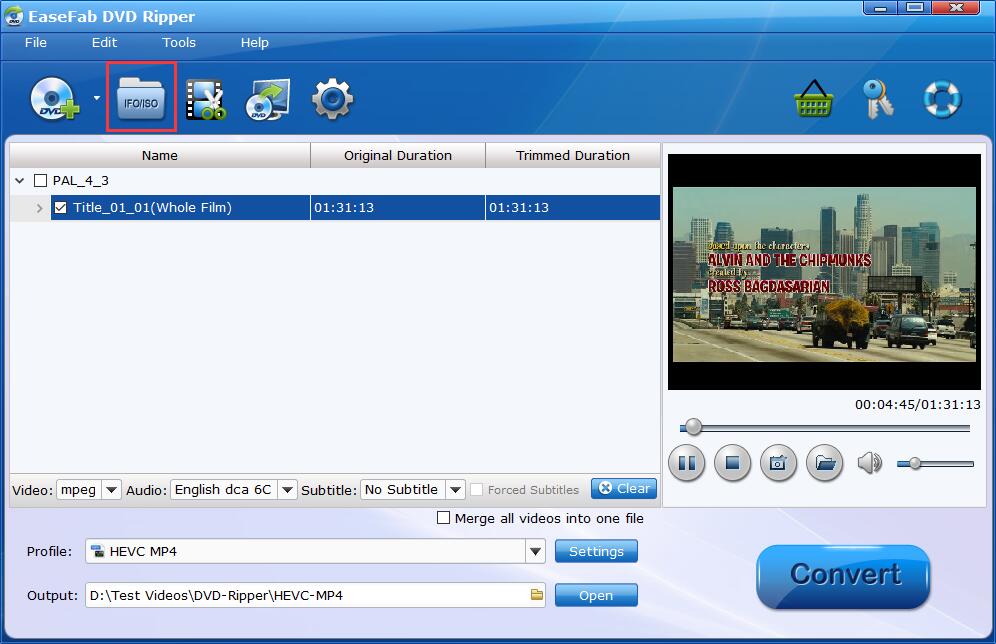
3. Import the ISO File
Use the software’s interface to import the ISO file that you want to convert to MP4. This can typically be done by clicking on a “File” or “Import” option within the software.
4. Select MP4 as the Output Format
Before starting the conversion process, make sure to choose MP4 as the output format for the converted file. You may also have the option to customize the settings according to your preferences.
5. Start the Conversion
Once you have selected the output format, click on the “Convert” or “Start” button to begin the conversion process. The software will start converting the ISO file to MP4 format.
6. Wait for the Conversion to Finish
The conversion process may take some time, depending on the size of the ISO file and the settings you have chosen. Once the conversion is complete, you will have an MP4 file ready for playback on various devices.
By following these simple steps, you can quickly and efficiently convert your ISO files to the more versatile and widely supported MP4 format. Enjoy the benefits of MP4’s compatibility and convenience for all your multimedia needs!
Best settings for converting ISO to MP4
When converting ISO files to MP4 format, selecting the right settings is crucial to ensure optimal quality and compatibility across different devices. To achieve the best results, consider the following settings:
Resolution
When converting ISO to MP4, it’s essential to choose the appropriate resolution based on the source file’s quality and the device you intend to play the video on. Common resolutions include 720p, 1080p, and 4K.
Bitrate
When converting ISO to MP4, it’s recommended to use a bitrate of around 2000-5000 kbps for standard definition videos and 5000-8000 kbps for high definition videos.
Frame Rate
The frame rate denotes the number of frames displayed per second in the video. The standard frame rate for most videos is 24, 30, or 60 fps. When converting ISO files to MP4, ensure that the frame rate matches the original source file to avoid any playback issues.
Codec
Selecting the right codec is essential for maintaining video quality during the conversion process. Common codecs for MP4 files include H.264 and H.265. H.264 is widely supported and offers good quality, while H.265 provides better compression but may not be compatible with all devices.
By optimizing these settings when converting ISO files to MP4, you can ensure that the resulting video is of high quality and can be played smoothly on various devices. Experiment with different settings to find the perfect balance between quality and file size for your specific needs.